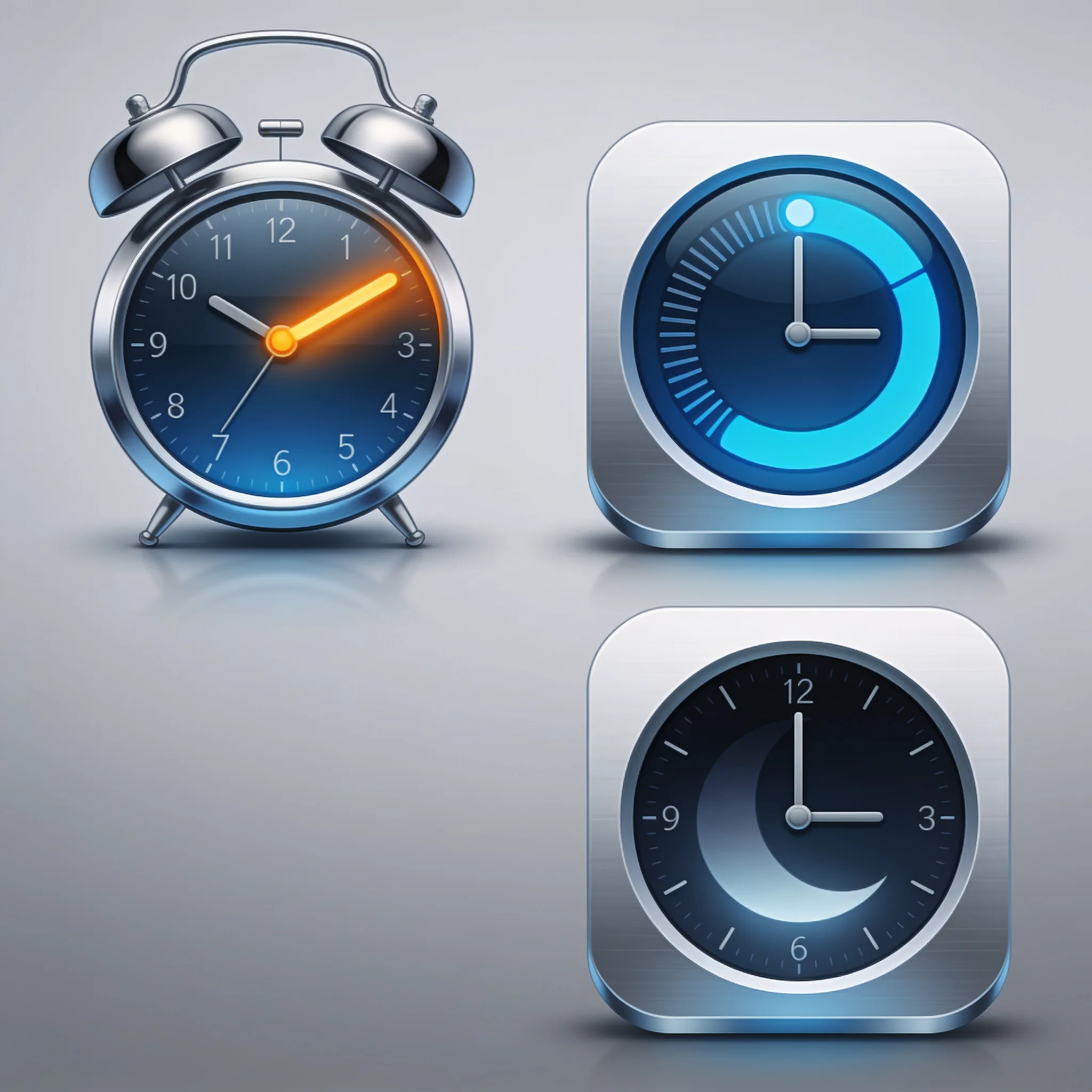
Users of Samsung Galaxy smartphones often encounter a small clock icon appearing in the top status bar alongside battery and signal indicators. While this symbol can cause confusion, it rarely indicates a malfunction. Instead, it signals one of three specific functions depending on its shape and context.
The most common reason for the clock icon is an active alarm set through the native Samsung Clock app. When an alarm is scheduled, the icon appears next to the Wi-Fi signal when the Quick Settings panel is expanded. It typically becomes visible when the alarm is set to ring within 30, 15, or five minutes, though testing shows it may also appear at 20- and 10-minute markers. A notification asking if the user wants to turn off the upcoming alarm may also appear in the notifications panel. To make this icon disappear completely, users must open the Clock app, navigate to the Alarm tab, and toggle off or delete any active alarms.
Software Update Indicator
A rounded square containing a small clock represents a different issue entirely. This symbol indicates that a new software update is available for the device. Users who have previously ignored update prompts will see this persistent icon until the update is installed. The only way to dismiss this symbol is to go to Settings, select Software update, and install the latest version of One UI. At the time of reporting, One UI 9 was rolling out to various Galaxy models, with some older devices receiving this as their final major update.
Light Performance Mode
A third icon resembling a speedometer with a small white leaf appears exclusively on newer flagship models, including the Galaxy Z Flip 4 and later, Galaxy Z Fold 4 and later, and Galaxy S23 and later. This symbol activates Light performance mode, which reduces power consumption by lowering the phone's processing speed. This feature helps extend battery life during tasks like scrolling social media or watching videos but automatically disables itself when a game starts to ensure full performance. If this icon appears unintentionally, users can swipe down from the top of the screen to access the Quick Settings panel and tap the tile again to deactivate the mode.
What it means
For Samsung users, these icons serve as functional alerts rather than error messages. Understanding the distinction prevents unnecessary troubleshooting for issues that are actually intentional features. An alarm icon simply reminds users of upcoming events, while the update prompt ensures devices remain secure and up-to-date. The Light performance mode offers a practical trade-off between battery longevity and raw processing power for casual users.
The primary uncertainty lies in whether users prefer manual control over these settings or would welcome automatic management. Some may find the persistent update icon annoying, while others appreciate the reminder to keep their software current. Similarly, Light performance mode could be beneficial for those prioritizing battery life or frustrating for gamers unaware of its activation.
Would you rely on your phone's automatic performance adjustments, or do you prefer to manually manage all system settings?