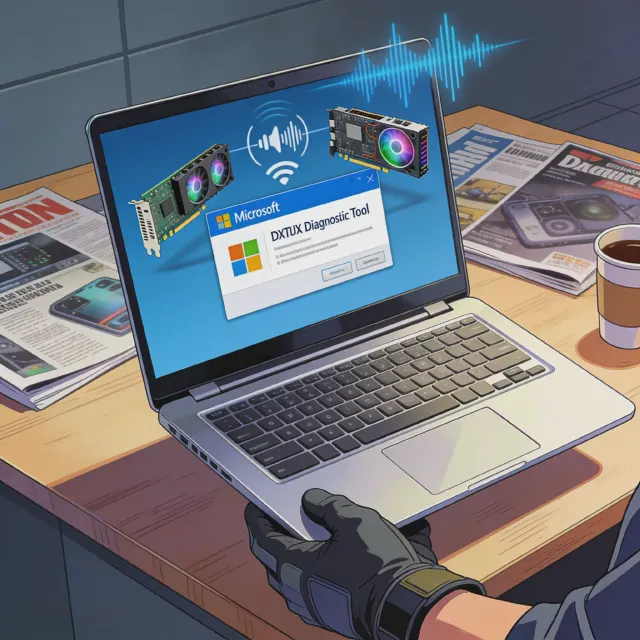
Windows Reliability Monitor offers a straightforward method for diagnosing PC stability problems without requiring deep technical knowledge of event logs.
The tool tracks hardware and application performance continuously, logging critical events such as crashed drivers, failed applications, and system health issues. Each day receives a stability score based on how long the system has operated without major incidents, though this metric can be inflated by periods of non-use.
Accessing the monitor requires opening the Run box using Windows Key plus R, then entering Perfmon /rel. Windows 8 and later users can also search for reliability history through the Start menu. The Control Panel provides another entry point under Security and Maintenance within the Security tab.
The interface displays a grid of events organized by date. Blue information icons indicate successful updates or software installations, while red X markers flag days with critical software or hardware failures. Clicking these icons reveals details about specific incidents, including timing and running applications at the time of failure.
While Reliability Monitor does not directly improve system performance, it helps identify problematic applications and faulty drivers that may cause slowdowns or crashes. For example, frequent GPU crashes during certain programs appear as logged events that users can inspect to determine whether the issue stems from hardware or software.
Users seeking real-time hardware usage data should consider Performance Monitor instead, which monitors CPU, GPU, RAM, and network activity more closely. Task Manager serves a similar purpose for background applications consuming system resources.
Compared to Event Viewer, Reliability Monitor prioritizes simplicity over exhaustive detail. Experienced users who need granular information about each event log may prefer Event Viewer, which offers multiple filtering options and deeper system state data. However, for sudden stability issues, Reliability Monitor provides a cleaner starting point before diving into more complex diagnostics.
What it means
Windows Reliability Monitor simplifies troubleshooting for average users who lack experience with technical event logs. Anyone experiencing blue screens, driver crashes, or unexplained system instability can use this built-in tool to narrow down potential causes without installing third-party software.
The stability score offers a quick overview but should not be treated as definitive proof of system health. Users must still investigate flagged events individually to understand root causes and implement appropriate fixes.
For those focused on performance optimization rather than crash diagnosis, Performance Monitor and Task Manager remain more suitable choices. Reliability Monitor works best as an initial diagnostic step when sudden stability problems arise.
Would you rely on the built-in Windows Reliability Monitor for troubleshooting, or do you prefer other diagnostic tools?